
Ever wondered how your phone, gaming console, or even your... Mehr anzeigen
 Technology6 aufrufe·Aktualisiert May 28, 2026·6 Seiten
Exploring Computer-Aided Design (CAD): A Beginner's Guide
1 / 6
1
of 6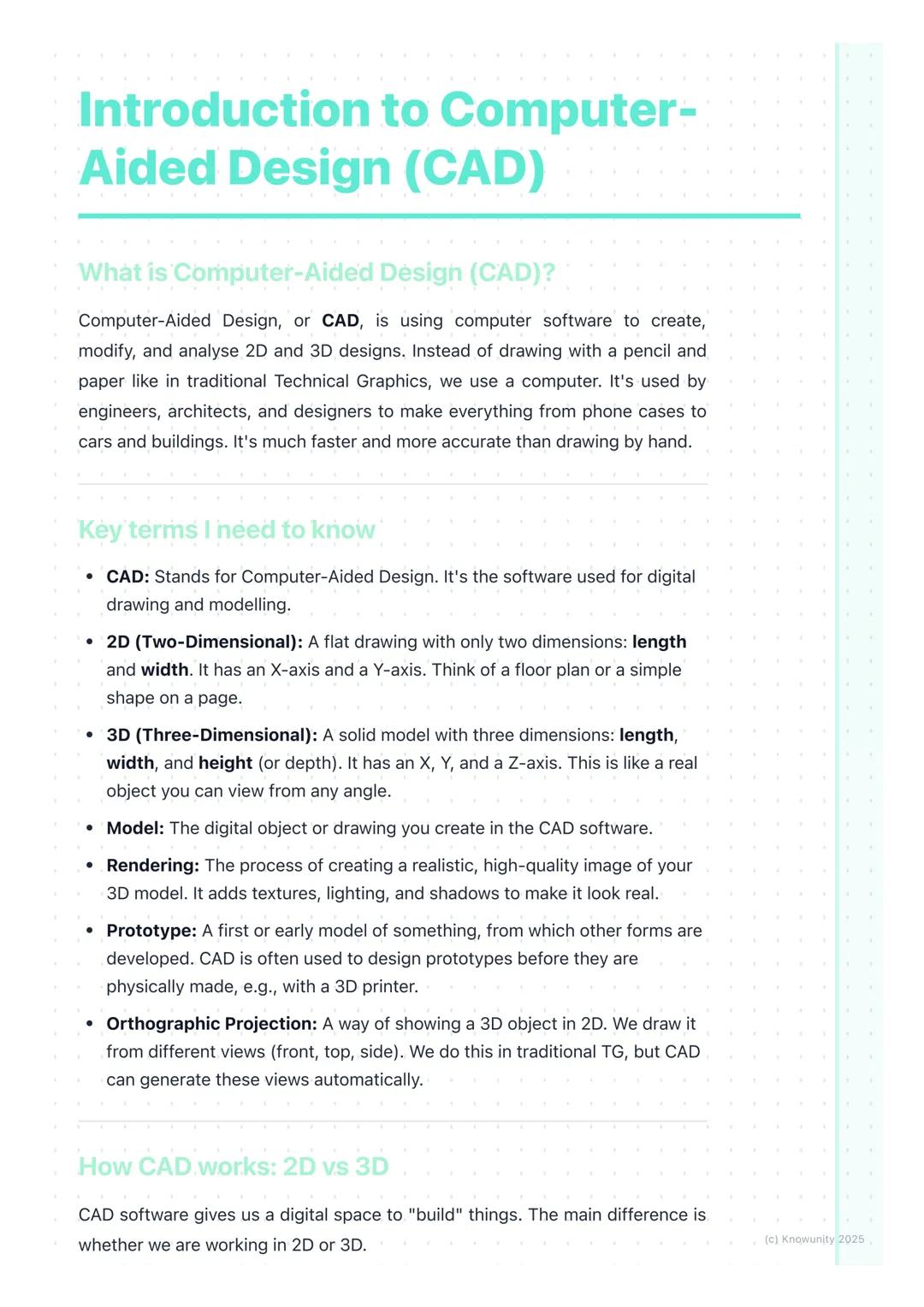
What is Computer-Aided Design?
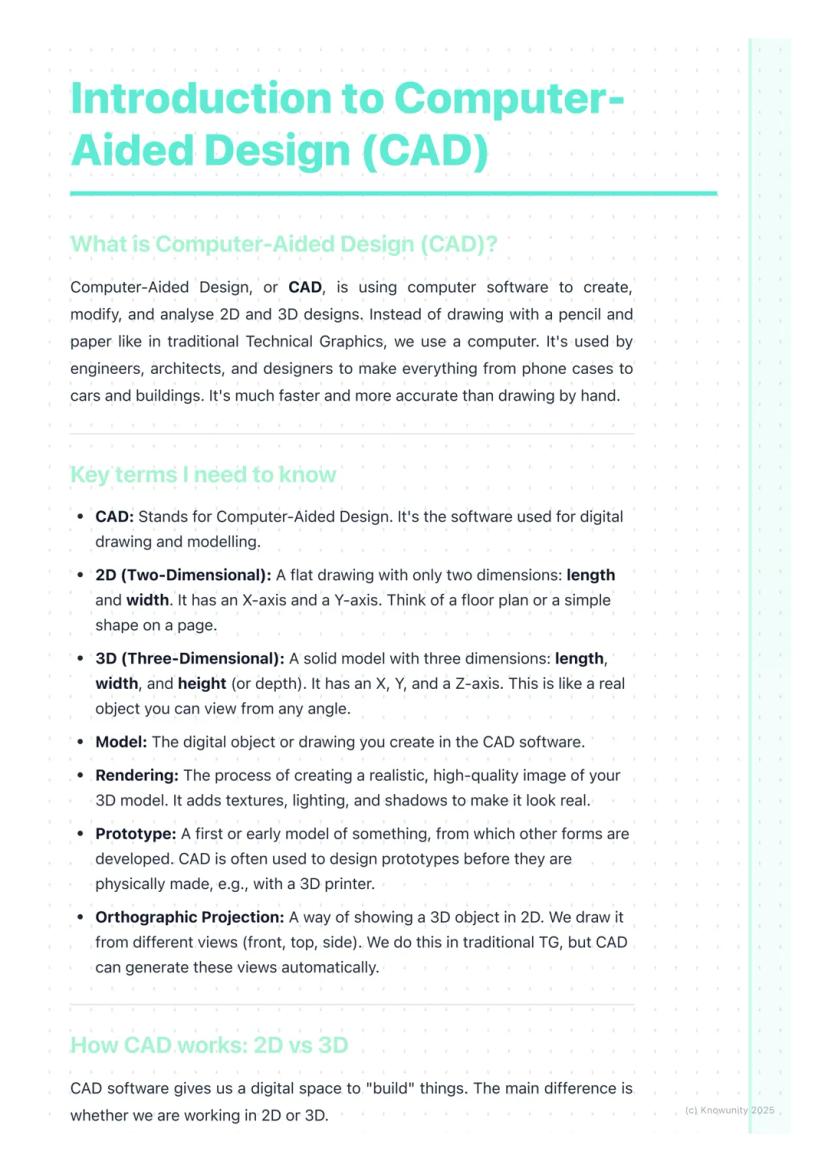
Think of CAD as your digital drawing board, but way more powerful than anything you could imagine. Computer-Aided Design lets engineers, architects, and designers create incredibly precise 2D drawings and 3D models using specialised software.
The beauty of CAD lies in its versatility. You can design a phone case one day and help plan a skyscraper the next. It's revolutionised how we create things because it's faster, more accurate, and infinitely easier to modify than traditional hand-drawing methods.
Key terms you'll need: A 2D design is flat with just length and width (X and Y axes), like a floor plan. A 3D model adds depth or height , creating solid objects you can view from any angle. Rendering transforms your basic 3D model into a photorealistic image with proper lighting and textures.
Quick Tip: Remember that orthographic projection - those front, top, and side views from traditional TG - can be generated automatically in CAD software!
2
of 6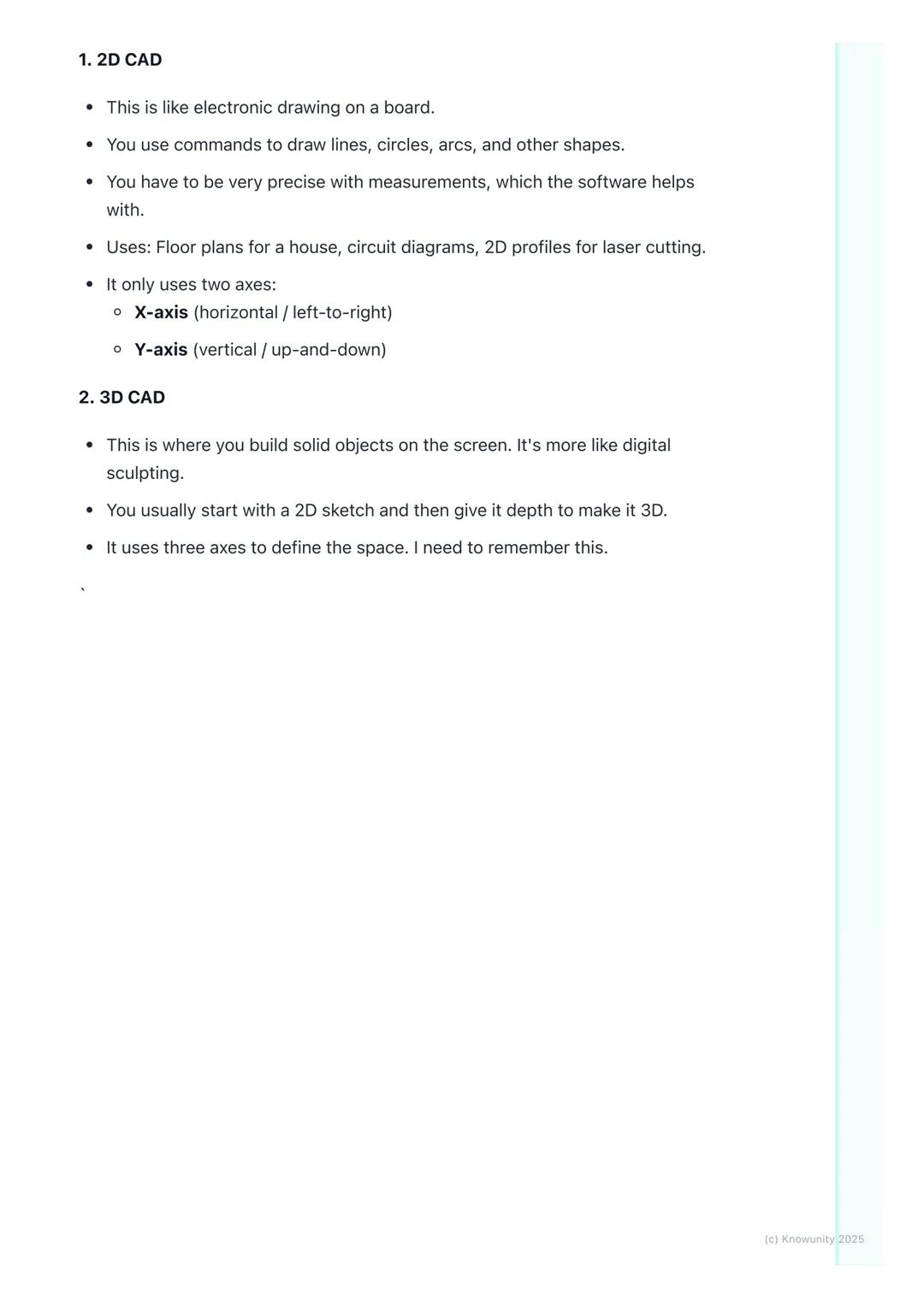
2D vs 3D CAD Explained
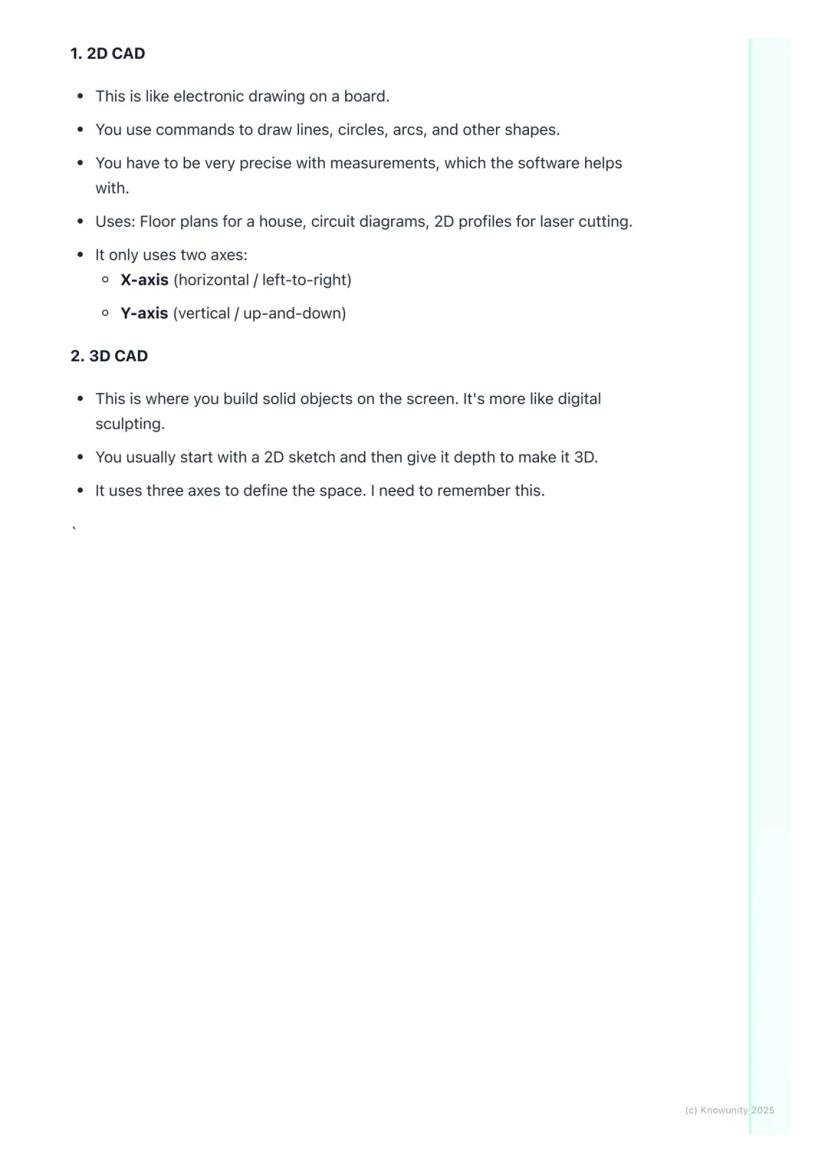
2D CAD works like an incredibly precise electronic drawing board. You'll use commands to draw lines, circles, and arcs with perfect measurements that the software tracks for you. It's brilliant for creating floor plans, circuit diagrams, or profiles for laser cutting.
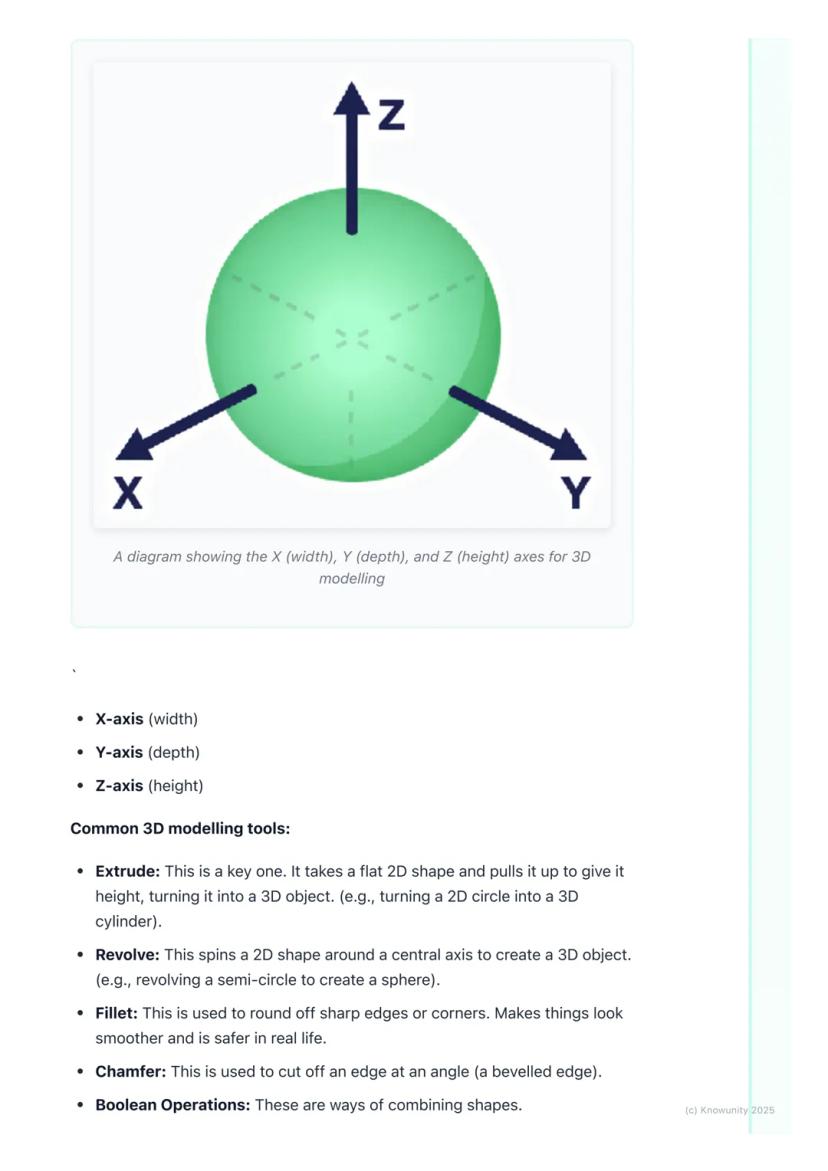
3D CAD is where things get exciting - you're essentially digital sculpting! Most 3D work starts with a 2D sketch that you then transform into a solid object by giving it depth. Remember the three axes: X-axis (width), Y-axis (depth), and Z-axis (height).
The most important 3D tool is extrude - it takes any flat 2D shape and pulls it up to create height, turning a circle into a cylinder or a square into a cube. Revolve spins a 2D shape around an axis (imagine spinning a semicircle to create a sphere).
Remember: Understanding these axes is crucial - they're the foundation of all 3D modelling work you'll do.
3
of 6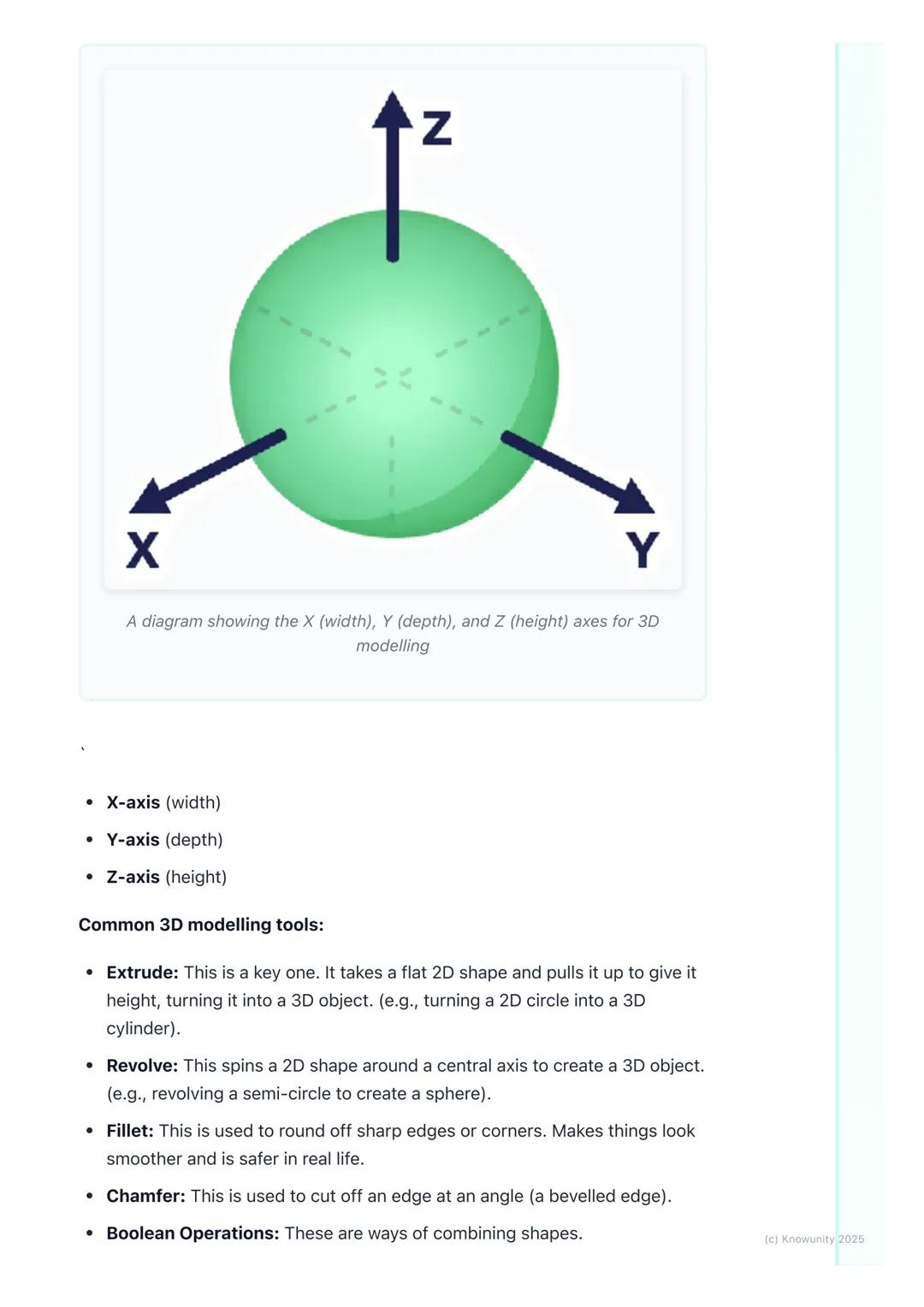
Essential 3D Modelling Tools
Once you've got your basic 3D shape, you'll need tools to refine it. Fillet rounds off sharp edges to make objects look smoother and safer, while chamfer cuts edges at an angle for a bevelled look.
Boolean operations are your shape-combining superpowers. Union fuses multiple shapes into one object - perfect for building complex designs from simple parts. Subtract uses one shape to cut holes in another, whilst intersect keeps only the overlapping parts of two shapes.
These tools might seem basic, but they're the building blocks of every complex CAD model you'll ever see. Master these fundamentals, and you'll be amazed at what you can create.
Pro Tip: Boolean operations are like digital Lego - you can build incredibly complex objects by cleverly combining simple shapes!
4
of 6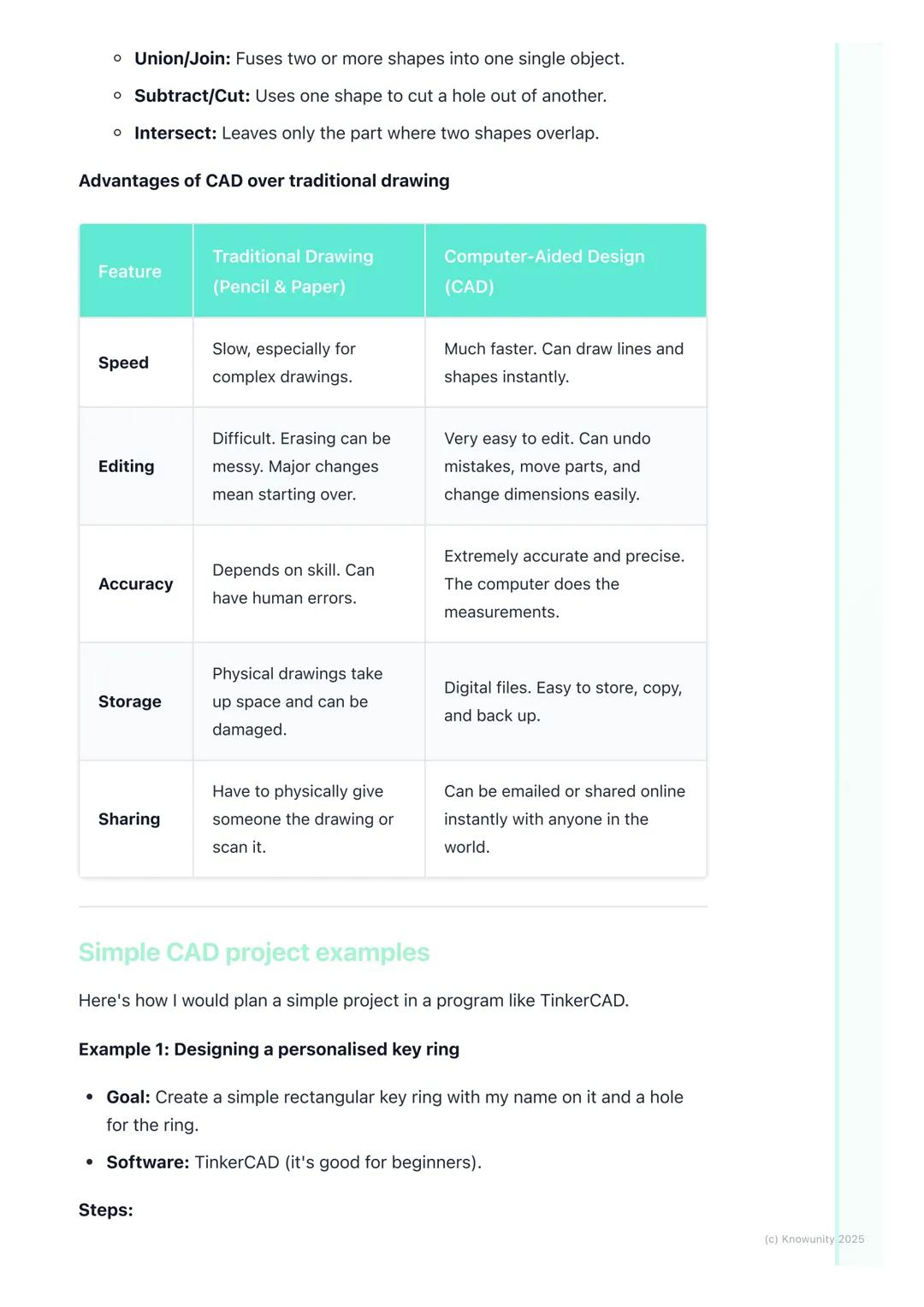
Why CAD Beats Traditional Drawing
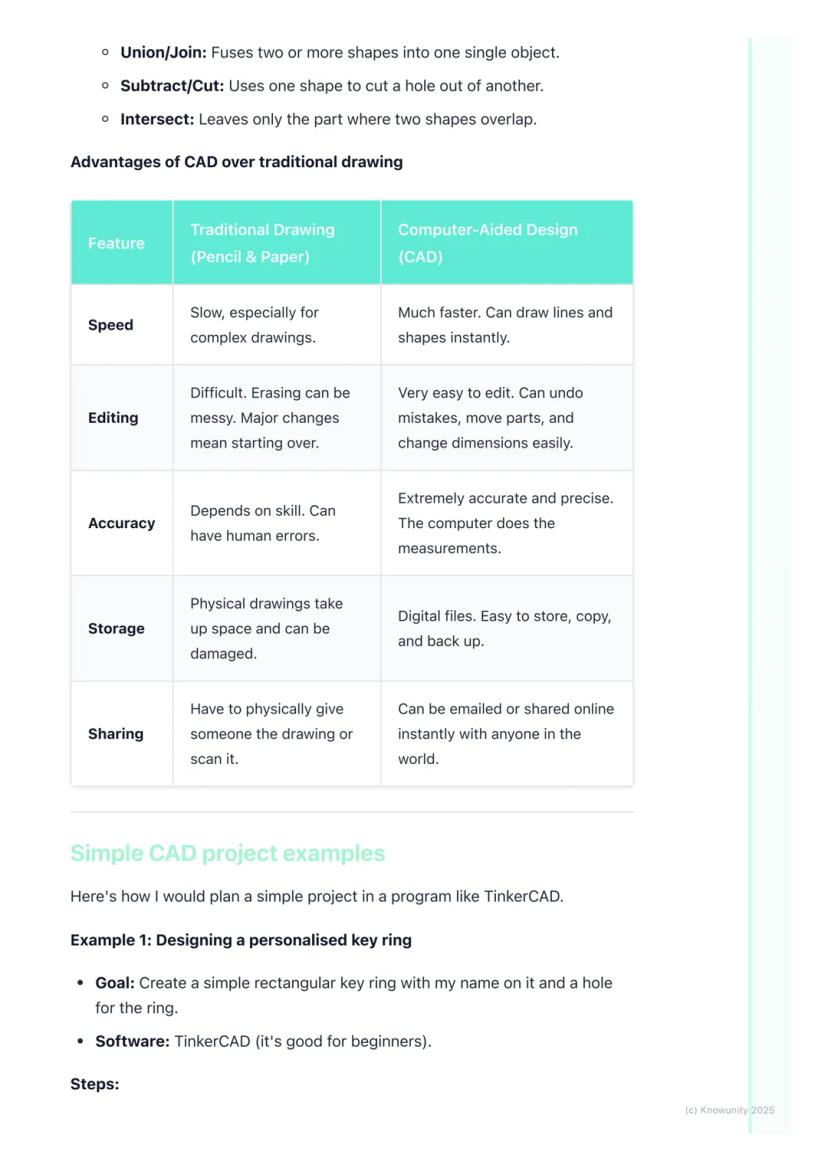
Let's be honest - CAD absolutely destroys traditional pencil-and-paper drawing in almost every way that matters. Speed? CAD wins - you can create perfect lines and shapes instantly. Accuracy? The computer handles all measurements, eliminating human error completely.
Making changes is where CAD truly shines. Messed up a dimension in traditional drawing? Start over. In CAD? Just click, edit, and you're done. Need to move an entire section? Drag and drop. Want to try a different design approach? Save a copy and experiment freely.
Storage and sharing are game-changers too. Physical drawings take up space, can be damaged, and sharing means photocopying or scanning. Digital CAD files can be stored forever, backed up easily, and shared instantly with anyone worldwide.
Real Talk: While traditional drawing skills are still valuable, CAD is what you'll actually use in most design careers.
5
of 6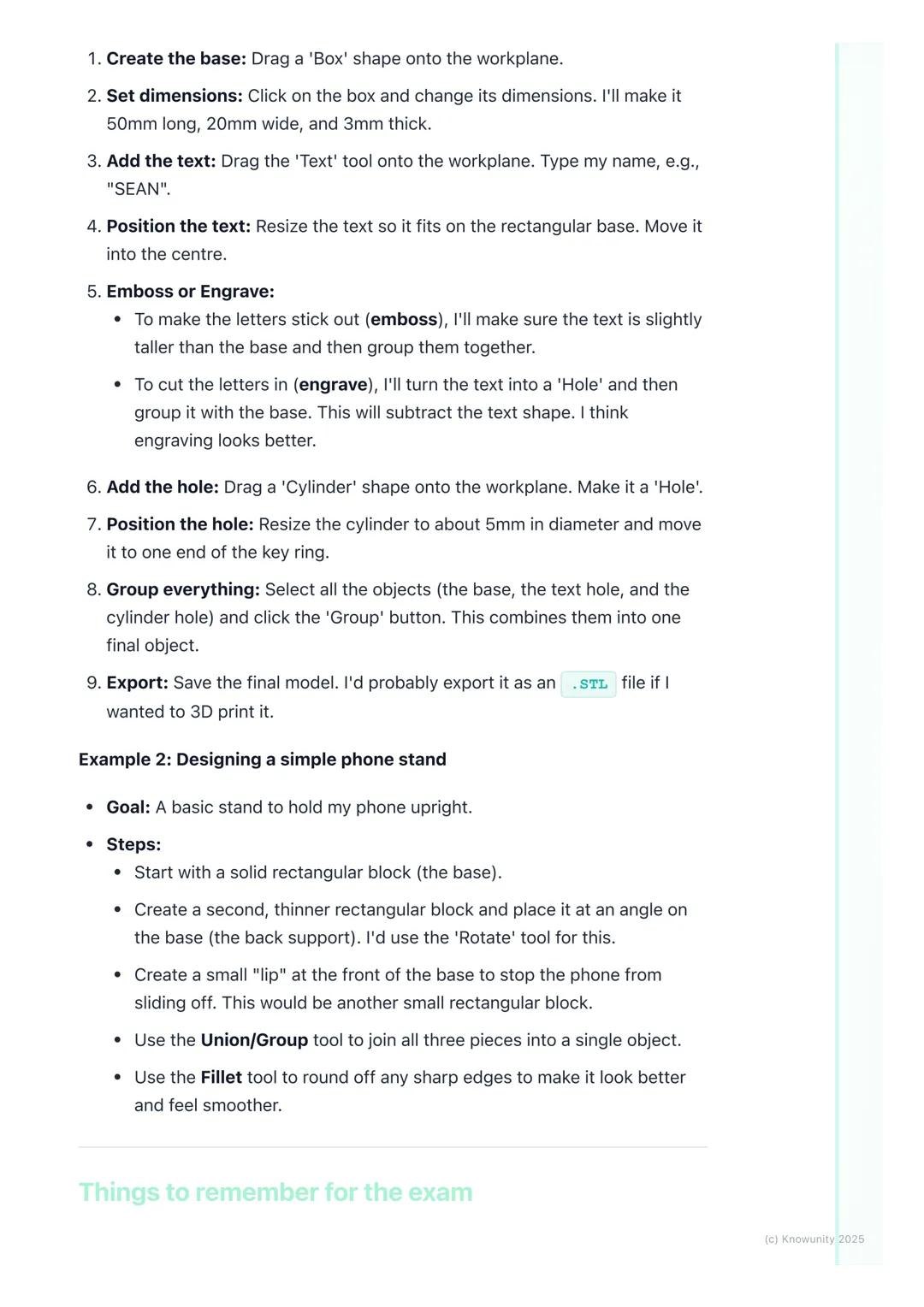
Practical CAD Project Walkthrough
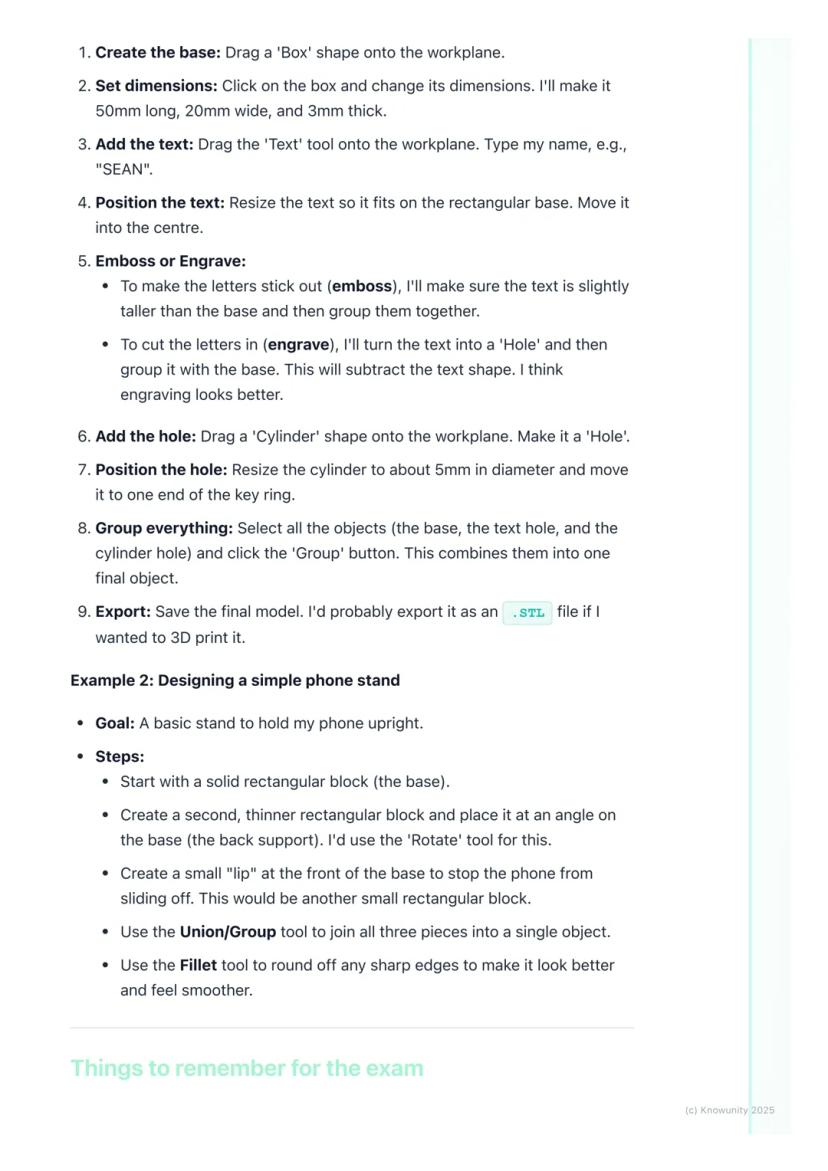
Let's design something you'd actually want - a personalised keyring using TinkerCAD. Start by dragging a box shape onto the workspace and resize it to 50mm long, 20mm wide, and 3mm thick.
Add your name using the text tool, then decide: do you want it raised (embossed) or carved in (engraved)? For engraving, change the text to a 'hole' and group it with the base - this subtracts the letters, creating carved text.
Create the key hole by adding a cylinder, making it a 'hole', and positioning it at one end. Finally, select everything and hit 'Group' to combine all elements into one finished object.
For a phone stand project, you'd build it from three basic rectangles: a base, an angled back support (use the rotate tool), and a small lip at the front to prevent sliding. Group them together and use fillet to smooth any sharp edges.
Success Strategy: Always save regularly with clear filenames like 'Keyring_v2.stl' - not 'random_thing.file'!
6
of 6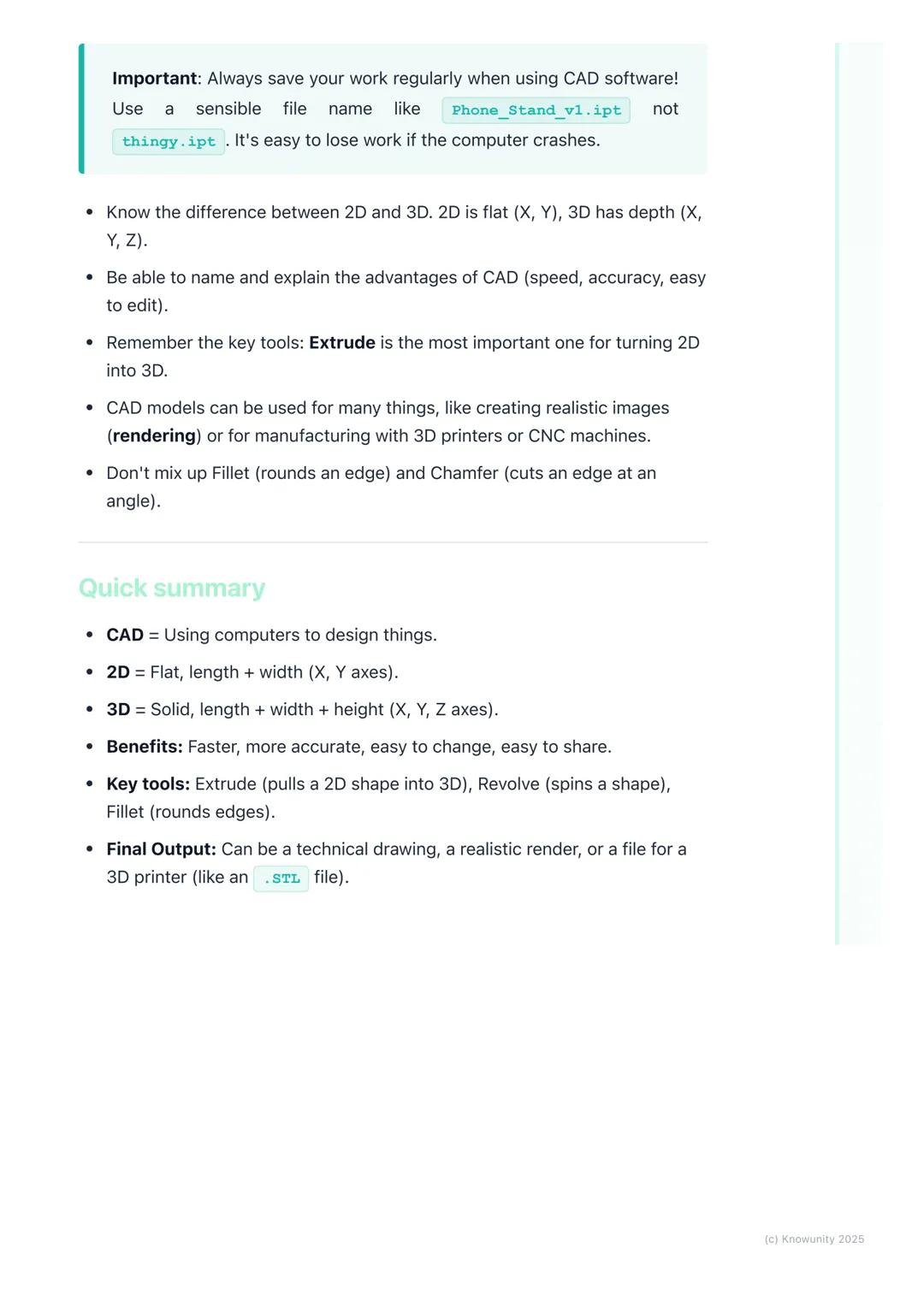
Exam Essentials and Quick Reference
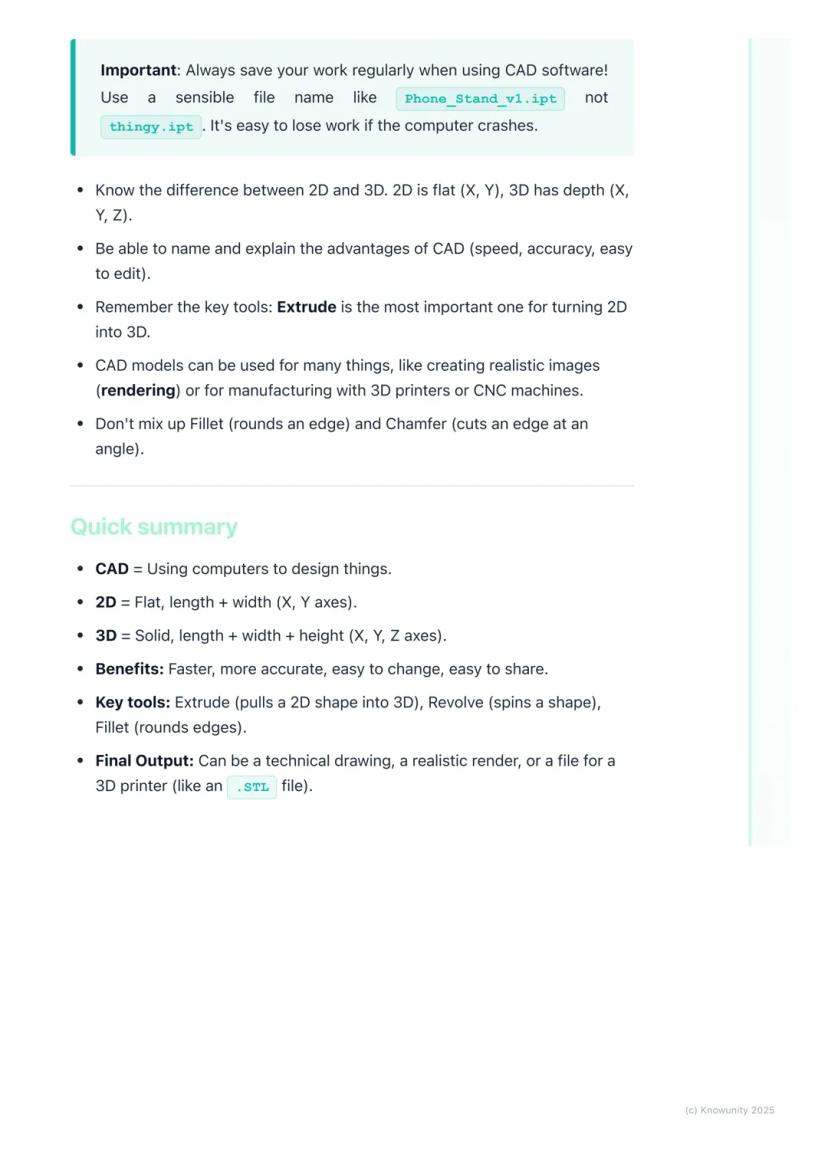
Here's what you absolutely must remember: 2D uses X and Y axes (flat), 3D adds the Z-axis . The main advantages of CAD are speed, accuracy, easy editing, and instant sharing capabilities.
Extrude is your most important tool - it transforms any 2D sketch into a 3D object by adding height. Don't confuse fillet (rounds edges) with chamfer (angled cuts) - they're completely different operations.
Your CAD models can become realistic images through rendering, physical objects via 3D printing, or technical drawings for manufacturing. The versatility is what makes CAD so powerful in modern design work.
Quick memory tricks: 2D = flat like paper, 3D = solid like objects around you. Extrude = pull up, Revolve = spin around, Boolean = combine or subtract shapes.
Final Reminder: CAD isn't just about knowing the tools - it's about thinking in 3D and breaking complex objects down into simple, manageable shapes.
Wir dachten schon, du fragst nie...
Was ist der Knowunity KI-Begleiter?
Unser KI-Begleiter ist ein speziell für Schüler entwickeltes KI-Tool, das mehr als nur Antworten bietet. Basierend auf Millionen von Knowunity-Inhalten liefert er relevante Informationen, personalisierte Lernpläne, Quizze und Inhalte direkt im Chat und passt sich deinem individuellen Lernweg an.
Wo kann ich die Knowunity-App herunterladen?
Du kannst die App im Google Play Store und im Apple App Store herunterladen.
Ist Knowunity wirklich kostenlos?
Genau! Genieße kostenlosen Zugang zu Lerninhalten, vernetze dich mit anderen Schülern und hol dir sofortige Hilfe – alles direkt auf deinem Handy.
Beliebtester Inhalt
9Findest du nicht, was du suchst? Entdecke andere Fächer.
Schüler lieben uns — und du auch.
4.6/5App Store
4.7/5Google Play
Die App ist sehr einfach zu bedienen und gut gestaltet. Ich habe bisher alles gefunden, wonach ich gesucht habe, und konnte viel aus den Präsentationen lernen! Ich werde die App definitiv für ein Schulprojekt nutzen! Und natürlich hilft sie auch sehr als Inspiration.
Stefan SiOS-Nutzer
Diese App ist wirklich super. Es gibt so viele Lernzettel und Hilfen [...]. Mein Problemfach ist zum Beispiel Französisch und die App hat so viele Möglichkeiten zur Hilfe. Dank dieser App habe ich mich in Französisch verbessert. Ich würde sie jedem empfehlen.
Samantha KlichAndroid-Nutzerin
Wow, ich bin wirklich begeistert. Ich habe die App einfach mal ausprobiert, weil ich sie schon oft beworben gesehen habe und war absolut beeindruckt. Diese App ist DIE HILFE, die man für die Schule braucht und vor allem bietet sie so viele Dinge wie Übungen und Lernzettel, die mir persönlich SEHR geholfen haben.
AnnaiOS-Nutzerin
Technology6 aufrufe·Aktualisiert May 28, 2026·6 SeitenExploring Computer-Aided Design (CAD): A Beginner's Guide
Ever wondered how your phone, gaming console, or even your house was designed before being built? Computer-Aided Design (CAD)is the digital tool that makes it all possible. Instead of sketching with pencil and paper like traditional Technical Graphics, designers... Mehr anzeigen
1
of 6Melde dich an, um den Inhalt zu sehen. Kostenlos!
- Zugriff auf alle Dokumente
- Verbessere deine Noten
- Schließ dich Millionen Schülern an
What is Computer-Aided Design?
Think of CAD as your digital drawing board, but way more powerful than anything you could imagine. Computer-Aided Design lets engineers, architects, and designers create incredibly precise 2D drawings and 3D models using specialised software.
The beauty of CAD lies in its versatility. You can design a phone case one day and help plan a skyscraper the next. It's revolutionised how we create things because it's faster, more accurate, and infinitely easier to modify than traditional hand-drawing methods.
Key terms you'll need: A 2D design is flat with just length and width (X and Y axes), like a floor plan. A 3D model adds depth or height , creating solid objects you can view from any angle. Rendering transforms your basic 3D model into a photorealistic image with proper lighting and textures.
Quick Tip: Remember that orthographic projection - those front, top, and side views from traditional TG - can be generated automatically in CAD software!
2
of 6Melde dich an, um den Inhalt zu sehen. Kostenlos!
- Zugriff auf alle Dokumente
- Verbessere deine Noten
- Schließ dich Millionen Schülern an
2D vs 3D CAD Explained
2D CAD works like an incredibly precise electronic drawing board. You'll use commands to draw lines, circles, and arcs with perfect measurements that the software tracks for you. It's brilliant for creating floor plans, circuit diagrams, or profiles for laser cutting.
3D CAD is where things get exciting - you're essentially digital sculpting! Most 3D work starts with a 2D sketch that you then transform into a solid object by giving it depth. Remember the three axes: X-axis (width), Y-axis (depth), and Z-axis (height).
The most important 3D tool is extrude - it takes any flat 2D shape and pulls it up to create height, turning a circle into a cylinder or a square into a cube. Revolve spins a 2D shape around an axis (imagine spinning a semicircle to create a sphere).
Remember: Understanding these axes is crucial - they're the foundation of all 3D modelling work you'll do.
3
of 6Melde dich an, um den Inhalt zu sehen. Kostenlos!
- Zugriff auf alle Dokumente
- Verbessere deine Noten
- Schließ dich Millionen Schülern an
Essential 3D Modelling Tools
Once you've got your basic 3D shape, you'll need tools to refine it. Fillet rounds off sharp edges to make objects look smoother and safer, while chamfer cuts edges at an angle for a bevelled look.
Boolean operations are your shape-combining superpowers. Union fuses multiple shapes into one object - perfect for building complex designs from simple parts. Subtract uses one shape to cut holes in another, whilst intersect keeps only the overlapping parts of two shapes.
These tools might seem basic, but they're the building blocks of every complex CAD model you'll ever see. Master these fundamentals, and you'll be amazed at what you can create.
Pro Tip: Boolean operations are like digital Lego - you can build incredibly complex objects by cleverly combining simple shapes!
4
of 6Melde dich an, um den Inhalt zu sehen. Kostenlos!
- Zugriff auf alle Dokumente
- Verbessere deine Noten
- Schließ dich Millionen Schülern an
Why CAD Beats Traditional Drawing
Let's be honest - CAD absolutely destroys traditional pencil-and-paper drawing in almost every way that matters. Speed? CAD wins - you can create perfect lines and shapes instantly. Accuracy? The computer handles all measurements, eliminating human error completely.
Making changes is where CAD truly shines. Messed up a dimension in traditional drawing? Start over. In CAD? Just click, edit, and you're done. Need to move an entire section? Drag and drop. Want to try a different design approach? Save a copy and experiment freely.
Storage and sharing are game-changers too. Physical drawings take up space, can be damaged, and sharing means photocopying or scanning. Digital CAD files can be stored forever, backed up easily, and shared instantly with anyone worldwide.
Real Talk: While traditional drawing skills are still valuable, CAD is what you'll actually use in most design careers.
5
of 6Melde dich an, um den Inhalt zu sehen. Kostenlos!
- Zugriff auf alle Dokumente
- Verbessere deine Noten
- Schließ dich Millionen Schülern an
Practical CAD Project Walkthrough
Let's design something you'd actually want - a personalised keyring using TinkerCAD. Start by dragging a box shape onto the workspace and resize it to 50mm long, 20mm wide, and 3mm thick.
Add your name using the text tool, then decide: do you want it raised (embossed) or carved in (engraved)? For engraving, change the text to a 'hole' and group it with the base - this subtracts the letters, creating carved text.
Create the key hole by adding a cylinder, making it a 'hole', and positioning it at one end. Finally, select everything and hit 'Group' to combine all elements into one finished object.
For a phone stand project, you'd build it from three basic rectangles: a base, an angled back support (use the rotate tool), and a small lip at the front to prevent sliding. Group them together and use fillet to smooth any sharp edges.
Success Strategy: Always save regularly with clear filenames like 'Keyring_v2.stl' - not 'random_thing.file'!
6
of 6Melde dich an, um den Inhalt zu sehen. Kostenlos!
- Zugriff auf alle Dokumente
- Verbessere deine Noten
- Schließ dich Millionen Schülern an
Exam Essentials and Quick Reference
Here's what you absolutely must remember: 2D uses X and Y axes (flat), 3D adds the Z-axis . The main advantages of CAD are speed, accuracy, easy editing, and instant sharing capabilities.
Extrude is your most important tool - it transforms any 2D sketch into a 3D object by adding height. Don't confuse fillet (rounds edges) with chamfer (angled cuts) - they're completely different operations.
Your CAD models can become realistic images through rendering, physical objects via 3D printing, or technical drawings for manufacturing. The versatility is what makes CAD so powerful in modern design work.
Quick memory tricks: 2D = flat like paper, 3D = solid like objects around you. Extrude = pull up, Revolve = spin around, Boolean = combine or subtract shapes.
Final Reminder: CAD isn't just about knowing the tools - it's about thinking in 3D and breaking complex objects down into simple, manageable shapes.
Wir dachten schon, du fragst nie...
Was ist der Knowunity KI-Begleiter?
Unser KI-Begleiter ist ein speziell für Schüler entwickeltes KI-Tool, das mehr als nur Antworten bietet. Basierend auf Millionen von Knowunity-Inhalten liefert er relevante Informationen, personalisierte Lernpläne, Quizze und Inhalte direkt im Chat und passt sich deinem individuellen Lernweg an.
Wo kann ich die Knowunity-App herunterladen?
Du kannst die App im Google Play Store und im Apple App Store herunterladen.
Ist Knowunity wirklich kostenlos?
Genau! Genieße kostenlosen Zugang zu Lerninhalten, vernetze dich mit anderen Schülern und hol dir sofortige Hilfe – alles direkt auf deinem Handy.
Beliebtester Inhalt
9Findest du nicht, was du suchst? Entdecke andere Fächer.
Schüler lieben uns — und du auch.
4.6/5App Store
4.7/5Google Play
Die App ist sehr einfach zu bedienen und gut gestaltet. Ich habe bisher alles gefunden, wonach ich gesucht habe, und konnte viel aus den Präsentationen lernen! Ich werde die App definitiv für ein Schulprojekt nutzen! Und natürlich hilft sie auch sehr als Inspiration.
Stefan SiOS-Nutzer
Diese App ist wirklich super. Es gibt so viele Lernzettel und Hilfen [...]. Mein Problemfach ist zum Beispiel Französisch und die App hat so viele Möglichkeiten zur Hilfe. Dank dieser App habe ich mich in Französisch verbessert. Ich würde sie jedem empfehlen.
Samantha KlichAndroid-Nutzerin
Wow, ich bin wirklich begeistert. Ich habe die App einfach mal ausprobiert, weil ich sie schon oft beworben gesehen habe und war absolut beeindruckt. Diese App ist DIE HILFE, die man für die Schule braucht und vor allem bietet sie so viele Dinge wie Übungen und Lernzettel, die mir persönlich SEHR geholfen haben.
AnnaiOS-Nutzerin